Build
Build, rebuild and clean a project from the Ashling Project View. The extension detects whether the project is a CMake or Make project and builds it with the SDK selected for the project.
What you need
- Import or open the project.
- Select an SDK for it. Example projects have theirs selected already.
Build a project
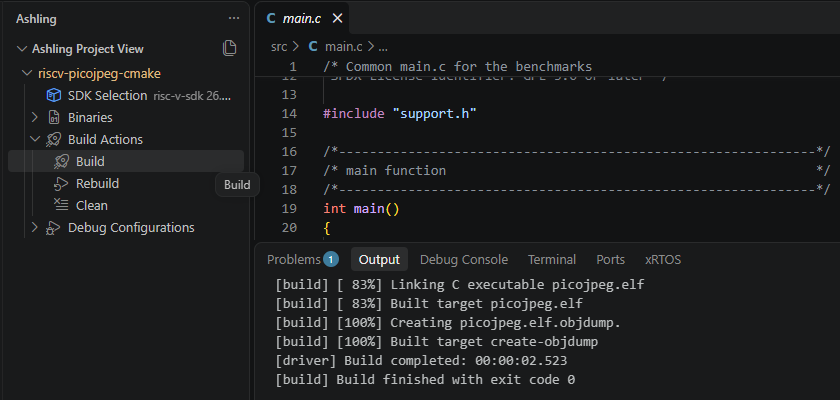
- Select the Ashling icon in the Activity Bar.
- In the Ashling Project View, expand the project, then Build Actions.
-
Select Build, or one of the other actions:
Action What it does Build Builds the project, compiling only what has changed. Rebuild Cleans the project, then builds it from scratch. Clean Deletes the build output. -
Check the result. Where the output appears depends on the project type:
The output appears in the Output panel under CMake/Build. A successful build ends with Build finished with exit code 0.
The output appears in the Terminal panel. A successful build ends without
makereporting anError.
If no SDK is selected, you see No SDK is selected for …. In the message, select the Select SDK button and pick one.
How CMake projects are built
The project is configured and built by CMake Tools, which VS Code installs automatically with the extension. It uses the SDK's kit — CMake Tools' name for a compiler set, which the extension creates for each SDK, for example Ashling SDK: risc-v-sdk 26.4.1 — the SDK's CMake, and the Unix Makefiles generator with the SDK's make.
By default the build files go to the build folder in the project (CMake Tools' cmake.buildDirectory setting). To choose the build type, for example Debug or Release, run CMake: Select Variant from the Command Palette (Ctrl+Shift+P).
How Make projects are built
The project is built by Makefile Tools, also installed with the extension, with the SDK's make and the SDK's compiler on the PATH:
- Build runs Makefile Tools' current build target. To choose the target, run Makefile: Set the target to be built by make from the Command Palette.
- Rebuild runs
make clean, then the build target. - Clean runs
make clean, so the Makefile needs acleantarget.
The Makefile decides where the built program goes, and what the build type is.
Build from a terminal
Terminals you open for the project after selecting its SDK have the SDK's tools on their PATH, so you can run cmake, make or the compiler yourself. Terminals that were already open keep their old PATH.
Find the built program
After a build, expand the project's Binaries row in the Ashling Project View. It lists the .elf and .axf files in the project (.axf is the extension Arm toolchains use for ELF files), and updates when a build or clean adds or removes them. These are the files you debug.
Common build problems
No SDK is selected for project
Select Select SDK in the message, or select an SDK on the project's SDK Selection row.
CMake Tools asks for a kit
CMake Tools asks for a kit when you open your own CMake project before an SDK is selected for it, or when you build with CMake Tools' own commands. Cancel it, select an SDK for the project, then build from Build Actions.
Invalid CMake path configured
The extension sets the project's cmake.cmakePath to the SDK's CMake when you select the SDK and on every build, replacing any value set by hand. This message means the selected SDK doesn't include CMake, so the path doesn't exist. Select an SDK that includes the build tools (the build-tools component).
Compiler or make not found
The SDK may be incomplete. Check its status in the SDK Manager, and repair it if needed.
The wrong toolchain is used in a terminal
Only terminals opened after the SDK was selected get its tools. Close the terminal and open a new one.
For more help, see Troubleshooting.