Activate a licence
Debugging Arm, ARC and RISC-V hardware with the Ashling GDB server needs an Ashling licence, except on VSD boards. You activate the licence from the extension using Activate Ashling GDB Server License option in the Quick Operations.
What's free and what needs a licence
| Component or workflow | Licence |
|---|---|
| Extension, SDK Manager, example projects, build | Free, no licence required |
| RISC-V QEMU simulator debugging | Free, no licence required |
| VSD (VLSI System Design) RISC-V hardware debugging | Free, no licence required |
| Arm, ARC and RISC-V hardware debugging with Ashling probes | Ashling GDB server licence, activated as described below |
SDKs marked No license required in the SDK Manager — Ashling SDK for RISC-V QEMU and Ashling SDK for VSD — don't need this step.
To buy a licence or an Ashling probe, visit ashling.com or contact support@ashling.com.
What you need
- Install an SDK that needs a licence: any SDK not marked No license required, such as Ashling SDK for RISC-V or Ashling SDK for Arm AArch32.
- Have your licence key ready. To get one, contact support@ashling.com. Ashling may ask for your computer's fingerprint first, to issue a key that is locked to this computer; see Get a licence locked to one computer.
Activate the licence
- Select the Ashling icon in the Activity Bar.
- Under Quick Operations, select Activate Ashling GDB Server License. You can also run Ashling: Activate Ashling GDB Server License from the Command Palette (Ctrl+Shift+P).
- The list shows the installed SDKs that need a licence. Select the SDK whose GDB server you want to activate, usually the SDK your project uses.
- The License Activation window opens. Paste your key into Enter License Key and select Activate.
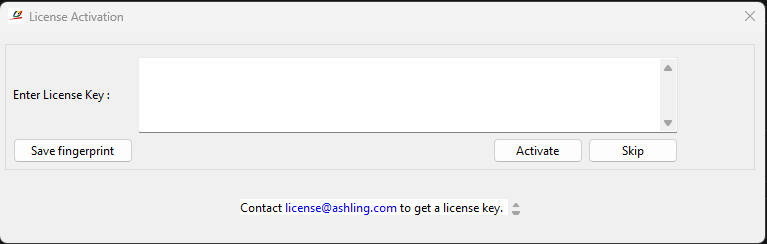
The License Activation window opens separately from VS Code, so you can keep working in VS Code while it is open, and VS Code itself shows no message about the result. Select Skip to close the window without activating. If a debug session later reports a licence error, see Troubleshooting.
Get a licence locked to one computer
Ashling may ask for your computer's fingerprint to issue a licence key that is locked to it:
- Open the License Activation window as above.
- Select Save fingerprint and save the file.
- Email the file to support@ashling.com.
- When you receive your key, open the window again, enter the key and select Activate.
Common licence problems
No installed SDK's found
No installed SDK can activate a licence. Select Open SDK Manager and install an SDK that needs a licence, such as Ashling SDK for RISC-V. If that SDK is already installed, its licence activation files may be missing: remove the SDK and install it again.
The License Activation window doesn't open
VS Code shows an error with the reason. Check that an antivirus program isn't blocking it, then try again. If it still fails, remove the SDK and install it again.
For licensing questions, contact support@ashling.com.